Documentation

Master Spectalya from A to Z

Step-by-step guide to conducting digital property inspections with photos, audio and PDF reports in minutes.

1 Getting started

Login & profile

Download the app, log in and set up your expert profile in under 2 minutes.

Download the app

Available on the App Store (iOS) and Google Play (Android), on smartphones and tablets.

Log in

Enter your email and password. Your session is maintained automatically between app launches.

Set up your profile

Enter your expert name, manage your electronic signature and choose the interface language (FR, EN, NL).

Offline mode: Spectalya works fully offline. Data is saved locally and synced as soon as you reconnect to the internet.
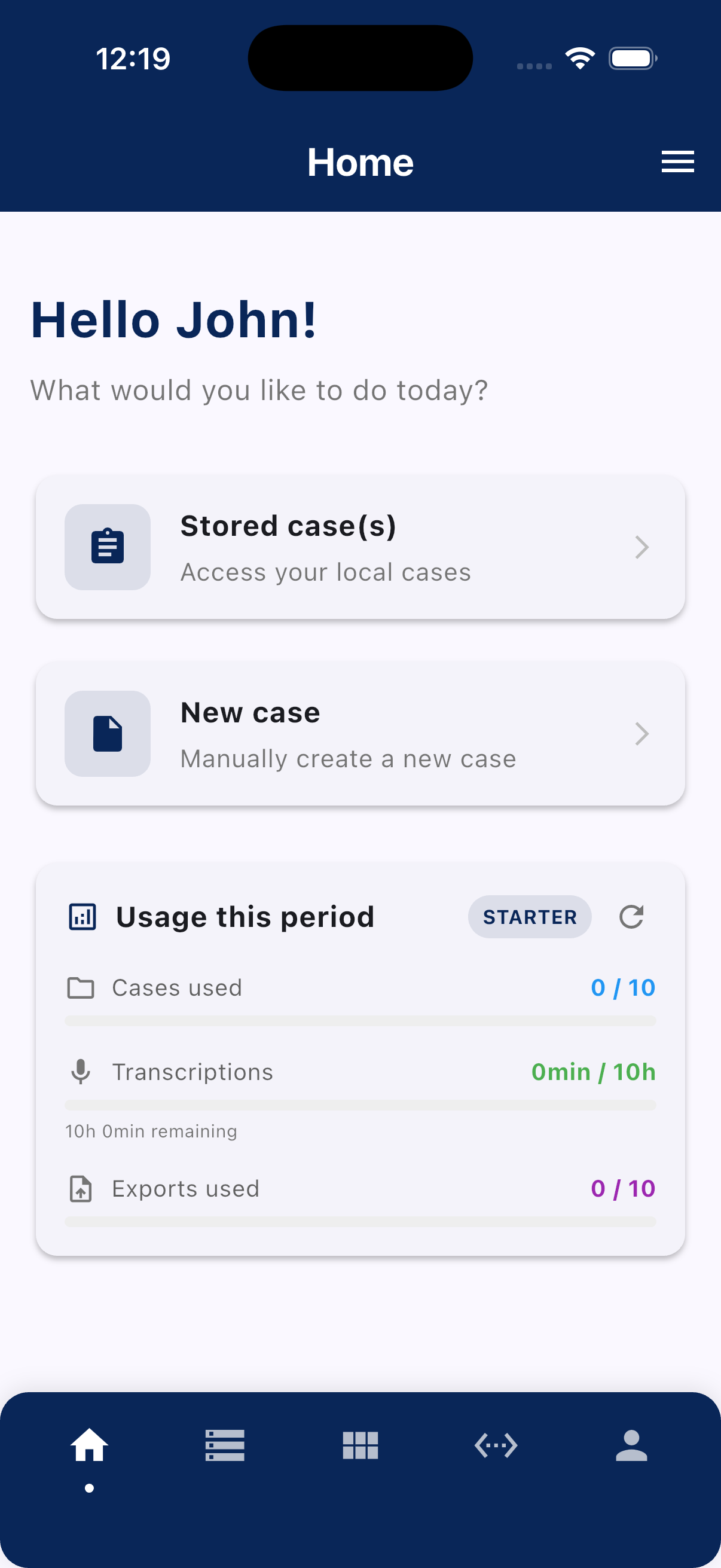
Spectalya home screen
2 Case

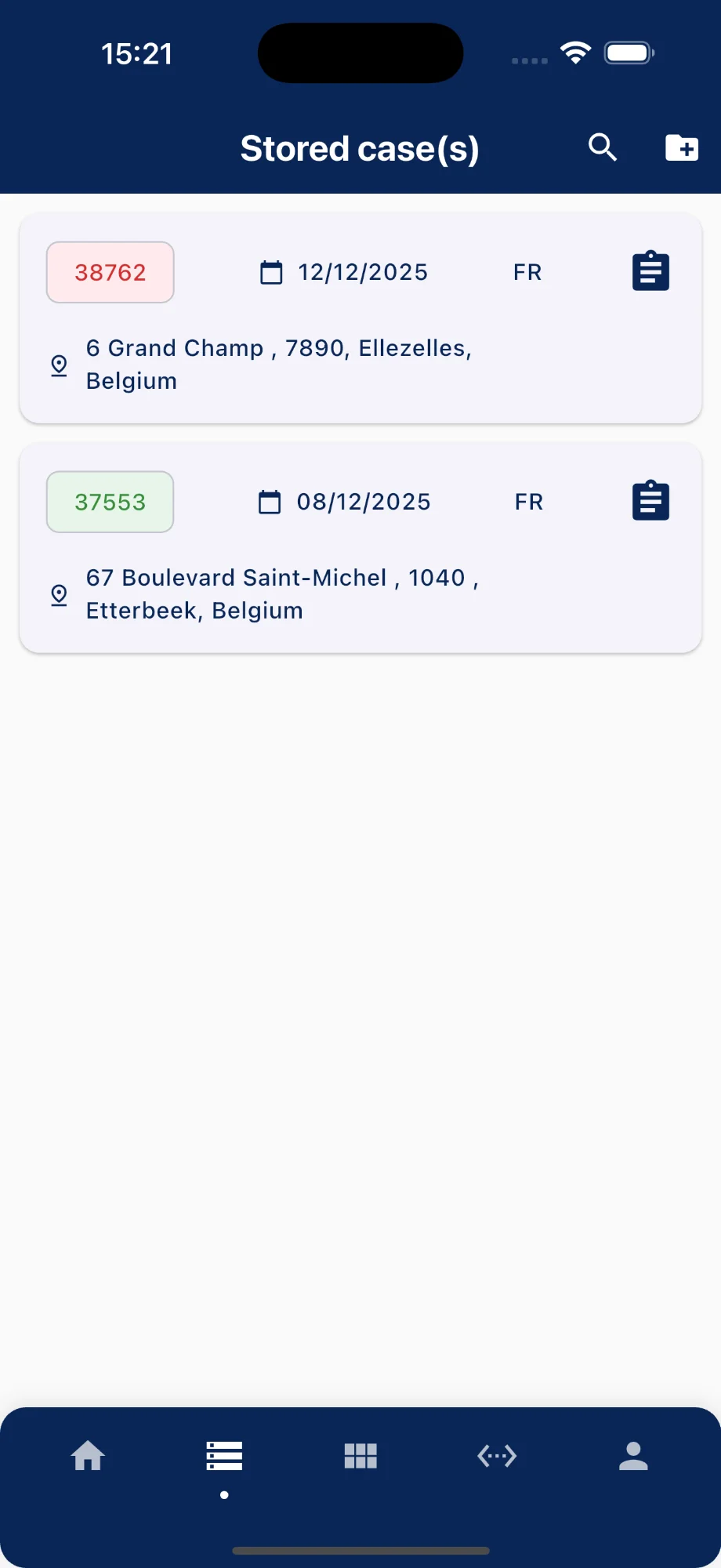
Create an inspection case

Start a new case in seconds with the inspection type, address and involved parties.

New case

Tap '+' from the home screen. Choose the type: move-in, move-out, survey, expert assessment…

Enter the address

Google Places autocomplete for precise address input. GPS geolocation is also available.

Add parties

Owner, tenant, agent or any custom role. Name, address, phone, email for each party.

Date and features

Inspection date, number of bedrooms, bathrooms,... Shown in the PDF report header.

Choose a template

Load a predefined template (apartment, house, studio…) to auto-fill rooms and elements.

Custom ID: Assign an internal reference to each case (contract number, mandate number…) visible on the record and in the report.
Spectalya case list
3 Structure

Manage property elements

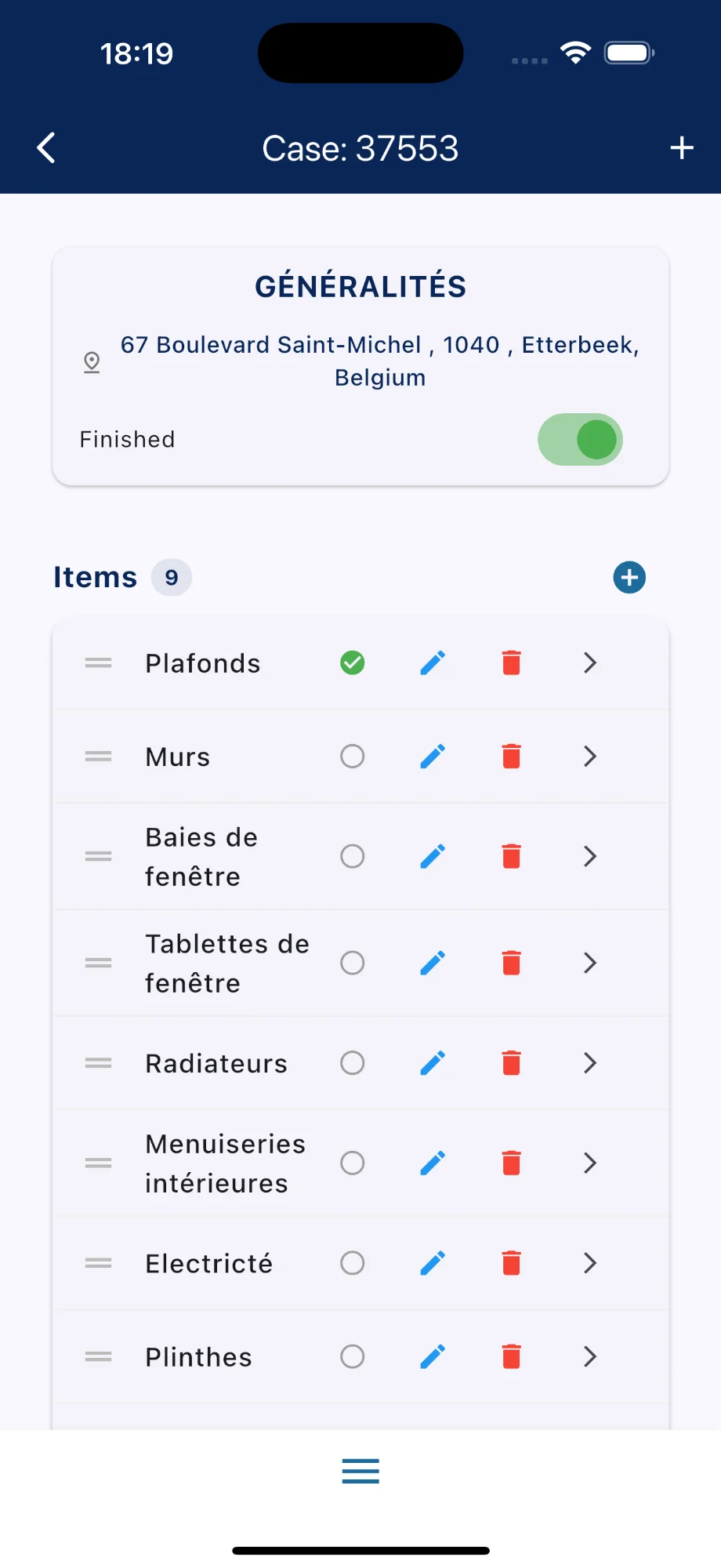
Organise the property into rooms and sub-elements for a methodical inspection and structured report.

Tree structure

E.g. Living Room → Floor, Walls, Ceiling, Windows. Navigate the tree from the main case screen.

Add and rename

Freely add rooms and elements. Rename them at any time. Reorder by drag-and-drop.

Enter a description

Write your assessment freely for each element (condition, material, colour). Voice dictation supported.

Custom templates

Create and save your own structures in the library. Reuse them on all future cases in seconds.

Inspection elements list
4 Media

Photos, audio & documents

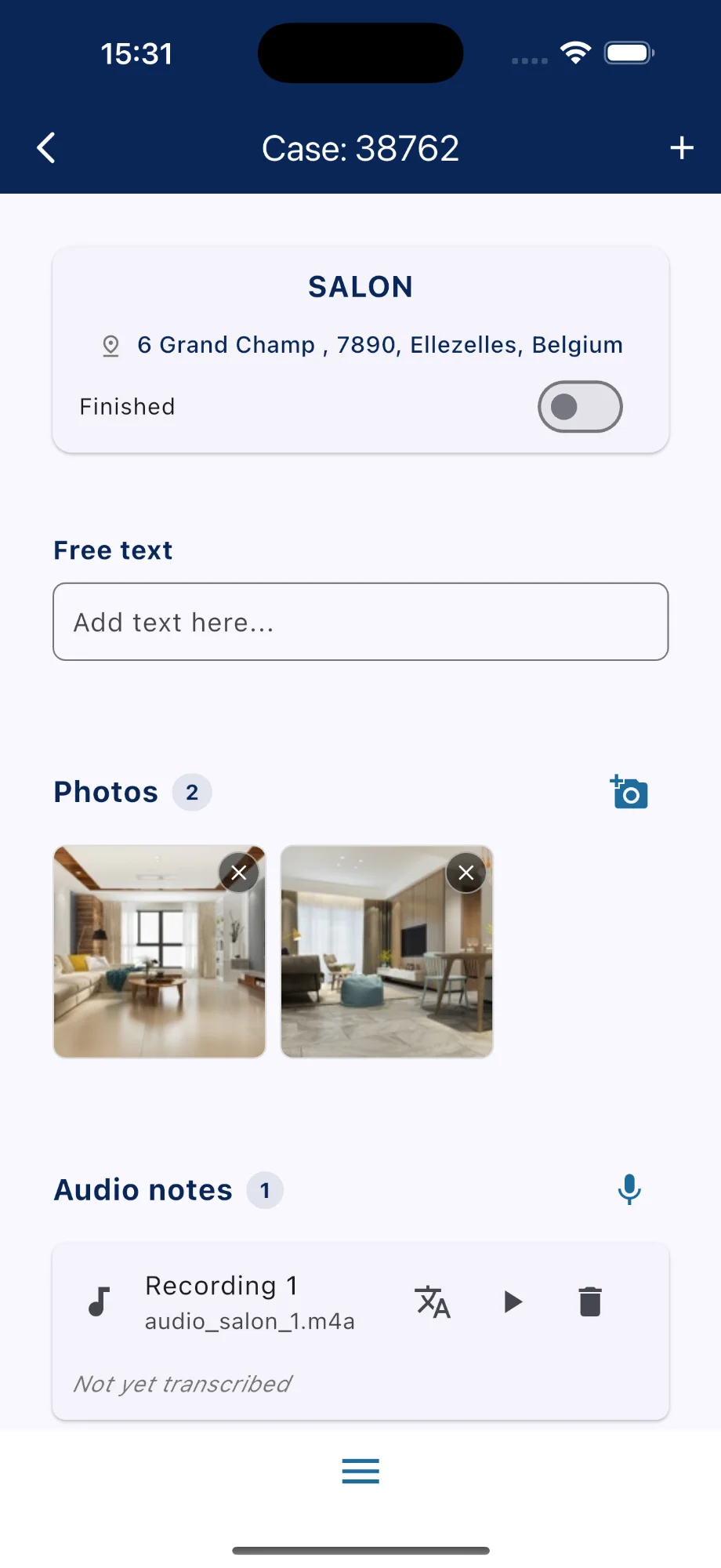
Document each element with photos, voice recordings and scanned documents, all attached in the right place.

Take photos

Take multiple photos in burst mode from an element's card, or import from the gallery. Automatically integrated into the report.

Multi-photo capture

Photograph several elements consecutively without leaving the camera. Photos automatically linked to each element.

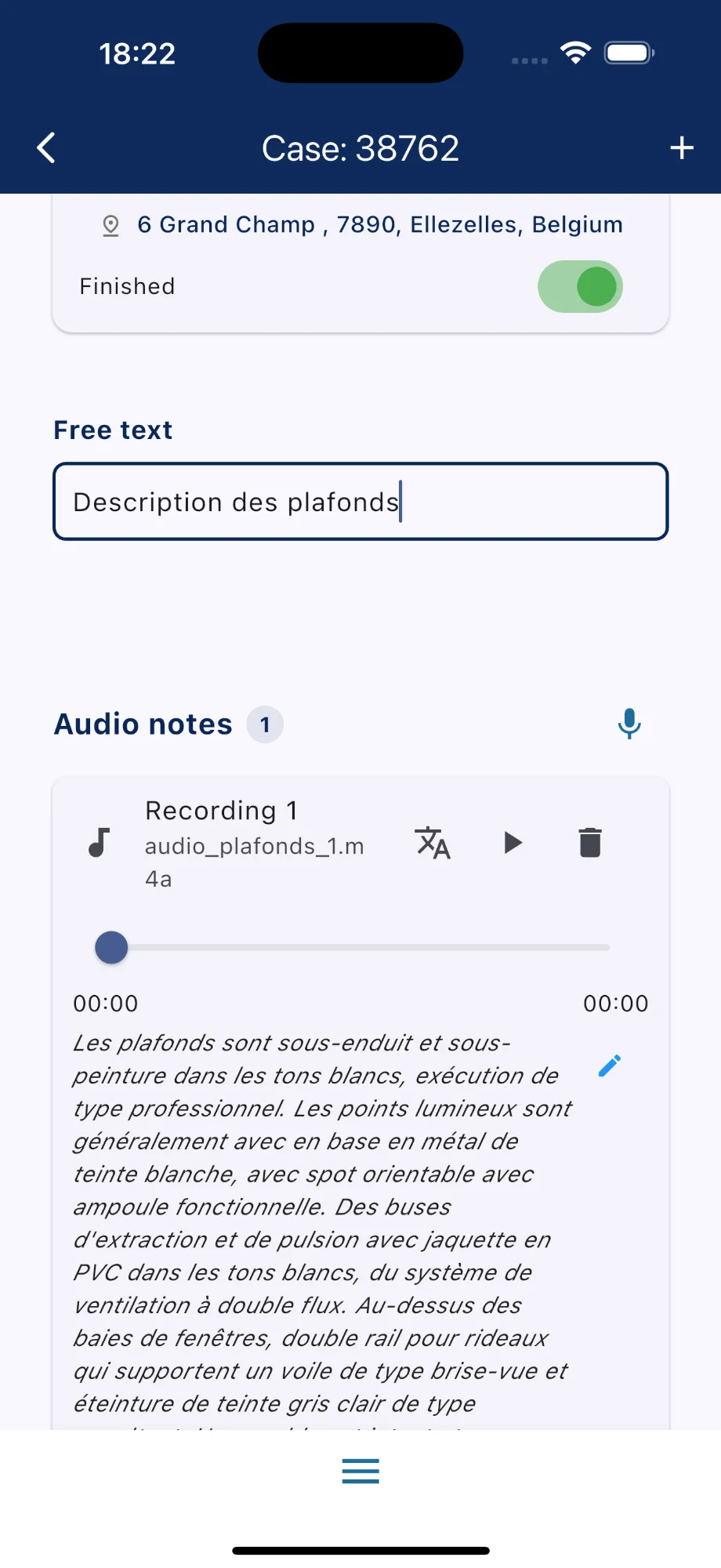
Record an audio comment

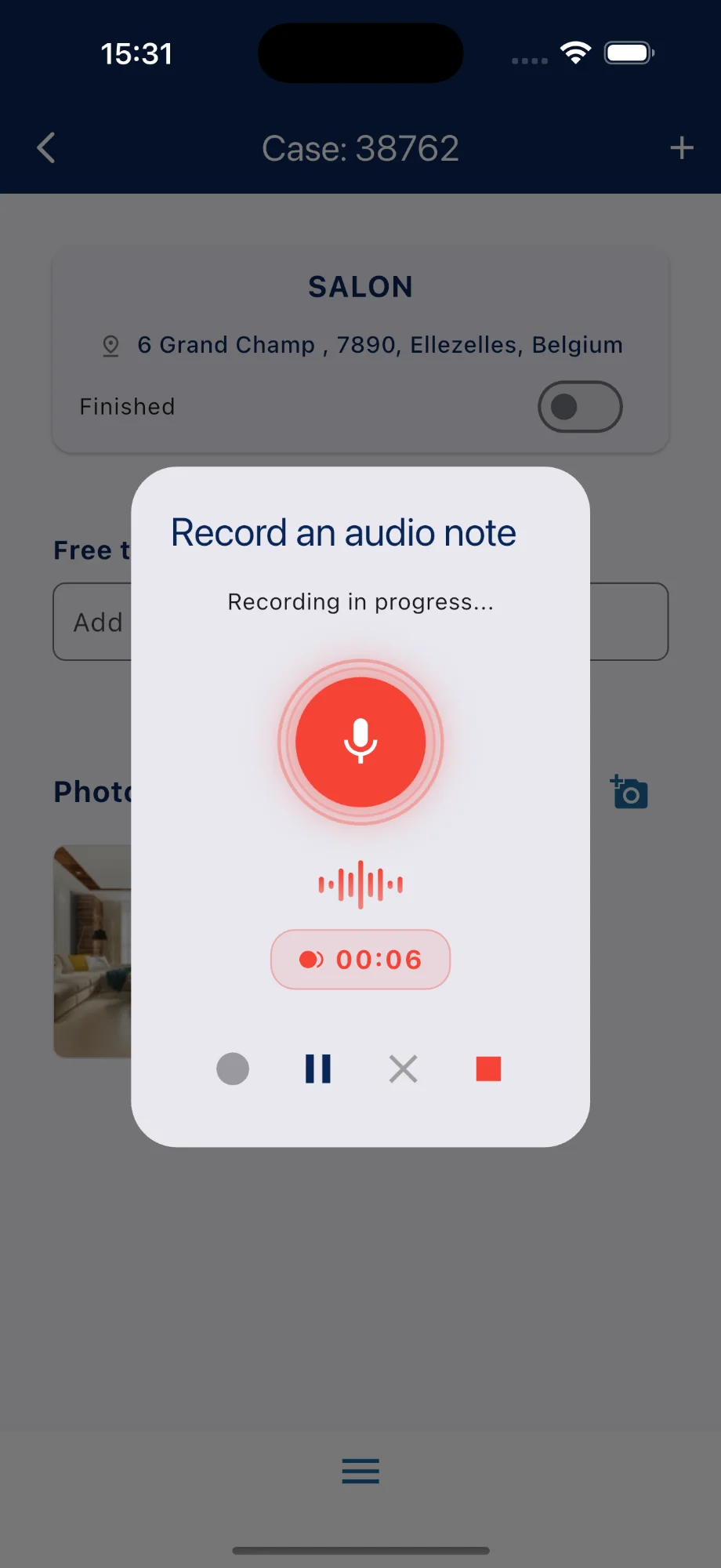
Tap the mic to dictate your assessment. Waveform displayed in real time. Saved locally.

Attach documents

Scan or import inventories, minutes, certificates. Built-in scanner available on compatible devices.

Quality & compression: Photos are automatically compressed to balance quality and PDF file size. Configurable in report settings.
Element detail with photos
Audio recording
5 Artificial Intelligence

AI audio transcription

Dictate your assessments in the field and get the text automatically via OpenAI Whisper.

How it works

Spectalya uses OpenAI Whisper, one of the world's most accurate speech recognition engines. Audio is automatically converted to text.

Multilingual & special characters

French, Dutch, English — with correct handling of accents and special characters (é, è, ë, ç, ô, ü…).

Batch transcription

Transcribe all audio recordings in the case at once from the transcription screen.

Review and correct

The generated text is fully editable before the report is generated.

Internet required: AI transcription requires an internet connection. If offline, recordings are kept and can be transcribed later.
Powered by OpenAI Whisper
Automatic transcription screen
6 Report

Preview & PDF report generation

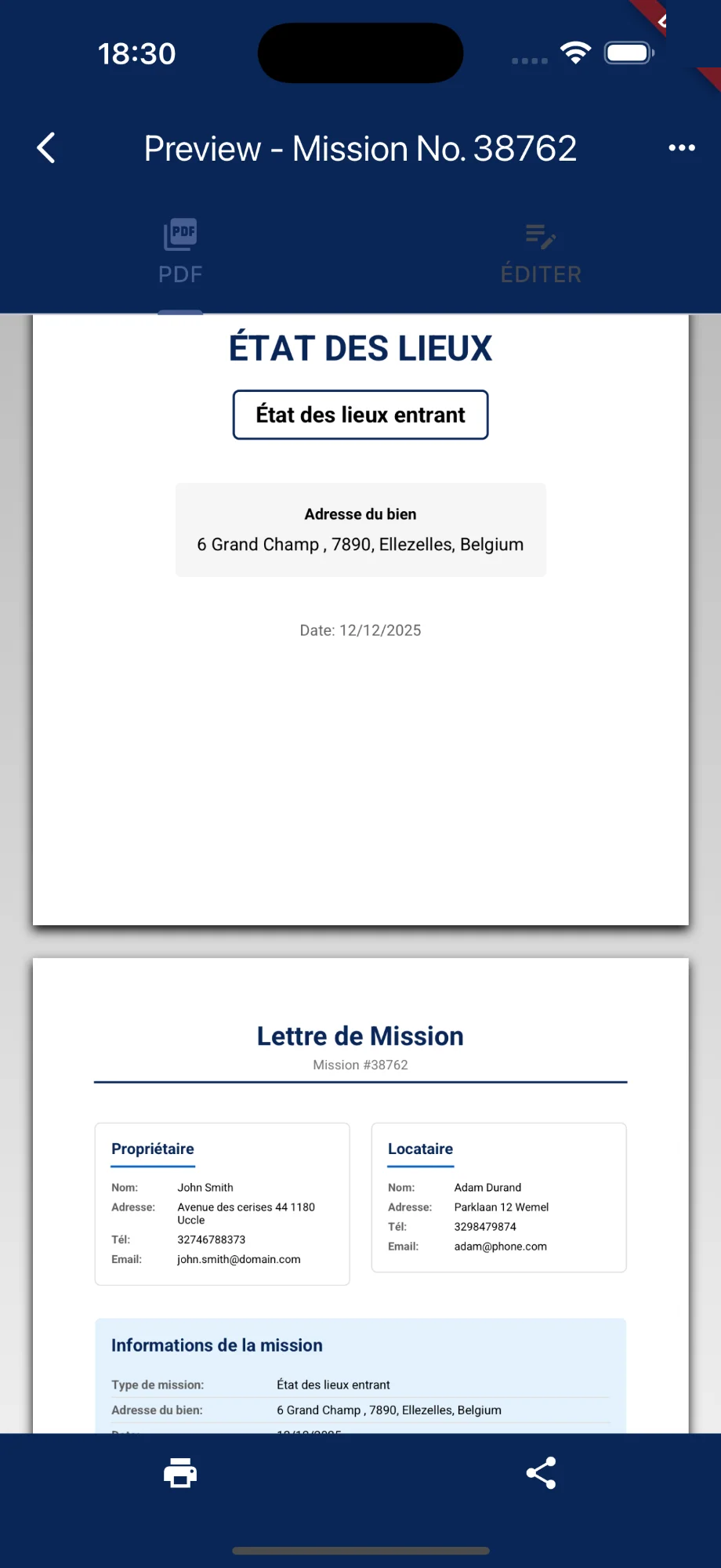
Preview the report in real time and generate a professional, signed PDF in the language of your choice.

Real-time preview

View the PDF rendering during the visit. Updates dynamically as you add photos and text.

Choose the report language

FR, NL or EN — all headers, labels and sections are translated automatically.

Electronic signature

Capture the expert's signature on the touchscreen. Embedded at the bottom of the PDF report.

Report settings

Photo quality, thumbnail size, rendering scale, inclusion of elements without observations.

Damage assessment

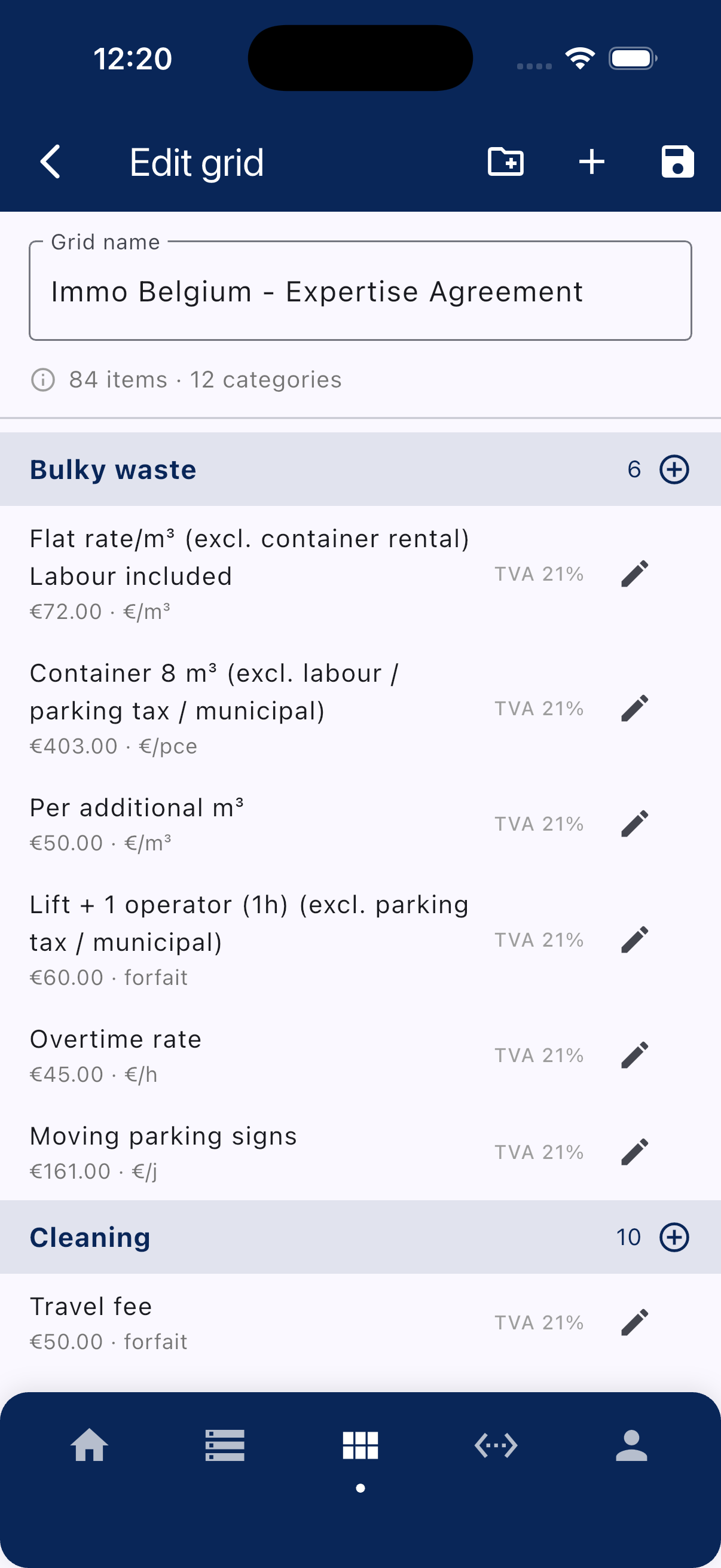
Assign an amount to each damage with customisable pricing grids. Automatic summary table.

Damage pricing grid
PDF report preview
7 Export

Export your case

Send the PDF report and media to your destination of choice with one tap, running in the background.

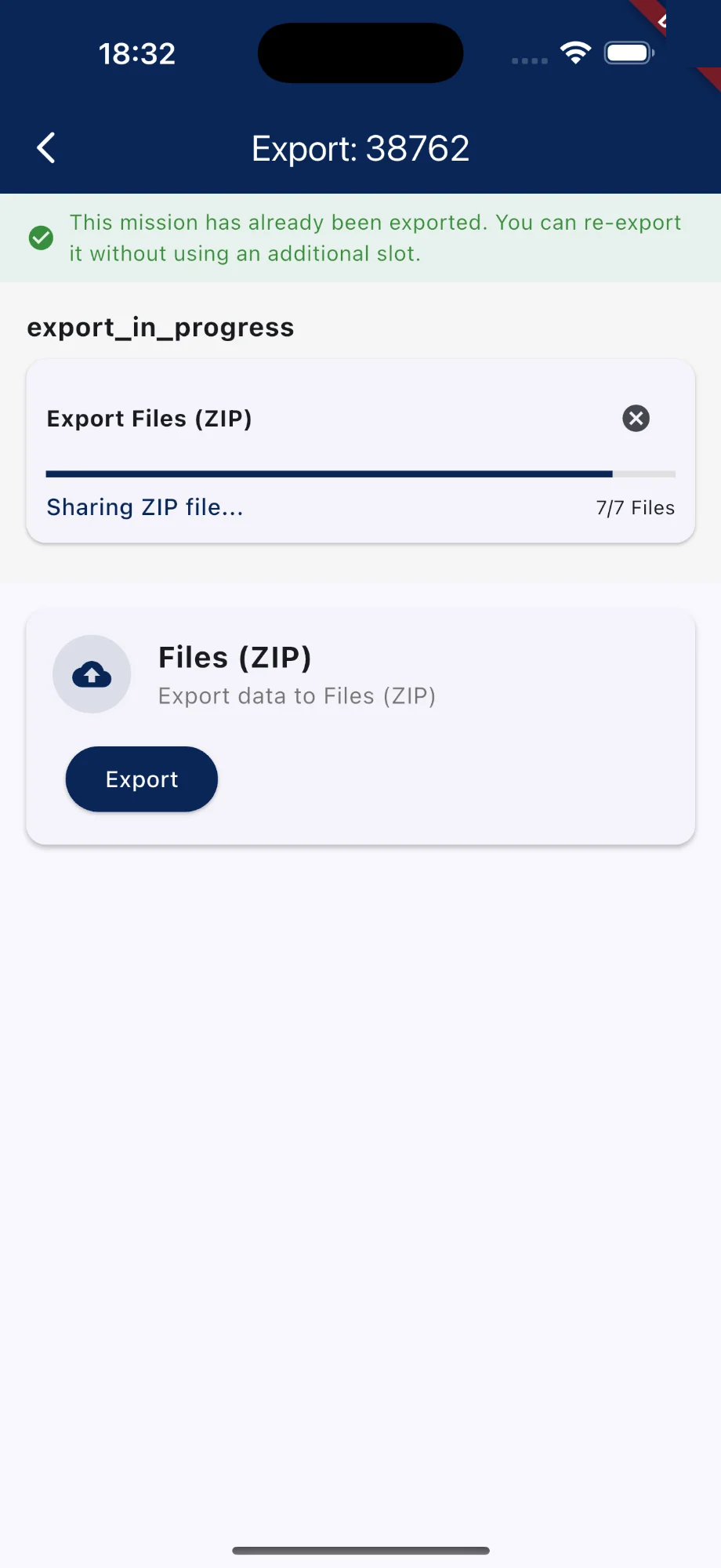
Start the export

Tap 'Export' from the case. Compilation and sending run in the background via the configured connector(s).

Export contents

PDF report, high-resolution photos, audio files, scanned documents, structured JSON data file.

Available connectors
📁
ZIP
Downloadable archive
🗂️
FTP / SFTP
Secure FTP server
☁️
Amazon S3
AWS cloud storage
Multi-connectors: Set up multiple connectors at once. Each export is sent to all enabled destinations in parallel.
Export screen